What Is a Web Browser? Explained for Kids
You tap an icon, type a few words, and a page appears. The program that makes that happen is a web browser.
A browser is a program that finds pages on the web and shows them to you. It also lets you move from page to page by clicking links. Chrome, Firefox, Edge, and Safari are all browsers.
Browser, search engine, website: what's the difference?
These three get mixed up all the time, so here is an easy way to keep them straight.
- The browser is the program you open. It is like a car that takes you places on the web.
- A website is a place you visit, such as a school's page or a game site.
- A search engine is a website that helps you find other websites. You use it inside your browser.
So a search engine is not a browser. When you search for a topic, you are using a website in your browser.
What happens when you press Enter?
Say you type a website address and press Enter. This is the simple version of what happens next.
- The browser looks up the address. A system called DNS works like an address book for websites. It tells the browser which server holds that site.
- The browser asks for the page. It sends a request to that server over the internet.
- The server answers. It sends back the files that make up the page: text, styles, pictures, and code, in small pieces called packets.
- The browser puts the pieces together. It builds the page from those files and shows it on your screen.
This is a simplified picture. Real websites do a lot more behind the scenes, but these four steps are the heart of it. To learn how addresses are built, read What Is a URL?
Parts of a browser
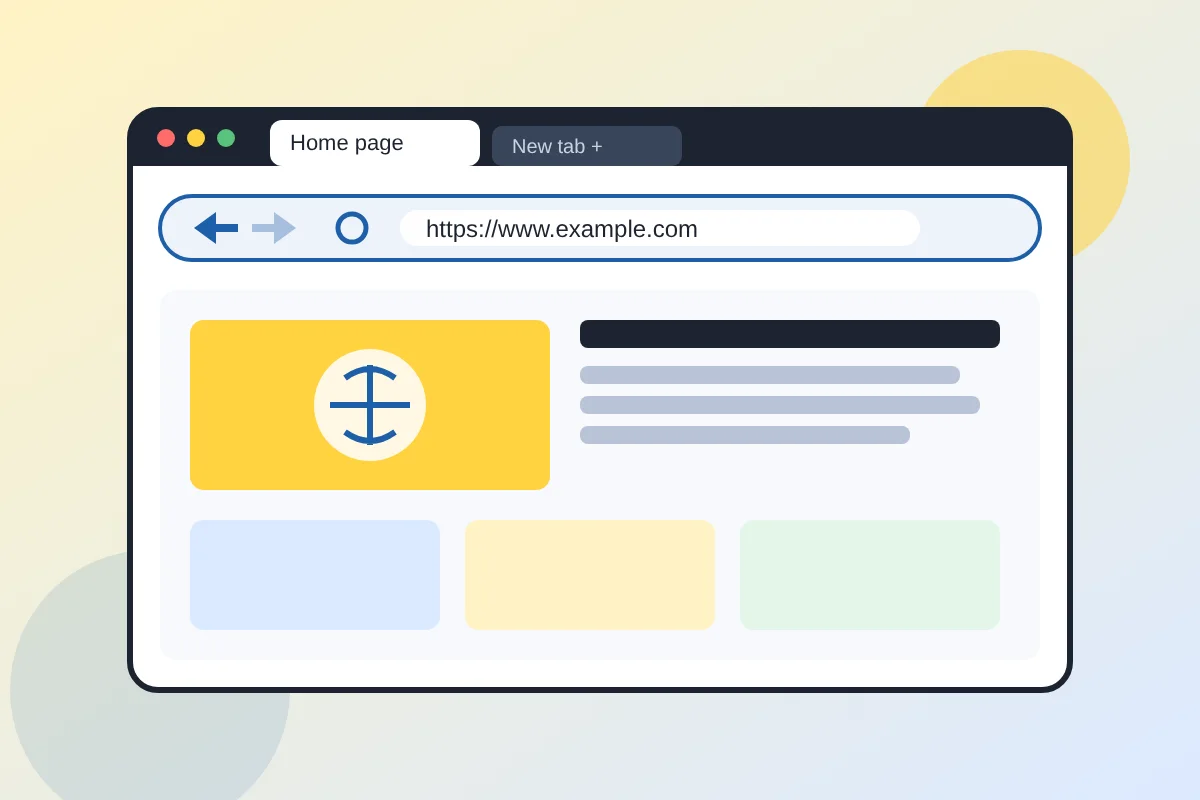
Every browser looks a little different, but most share the same basic tools.
- Address bar. Where you type or see the website's address.
- Tabs. Let you keep several pages open at once, like bookmarks in a stack of papers.
- Back and forward buttons. Move through pages you have already visited.
- Reload button. Asks the website for the page again.
- Bookmarks. Save pages you want to find again.
Safe browsing habits
- Keep your browser up to date. Updates fix problems that could be misused. A grown-up can turn on automatic updates.
- Look at the real address. A lock symbol or
httpsmeans the connection is protected while information travels. It does not prove a website is honest or safe. - Ask before you download. Check with a parent or teacher before downloading anything or entering personal information.
- Close pages that feel wrong. If a page scares you or asks for a password out of the blue, close it and tell a grown-up.
Try it: browser tour
Open a browser with a grown-up and find these five things: the address bar, a tab, the back button, the reload button, and where bookmarks live. Then answer this question: why does every website need an address? The free activity sheet below has space for your answers and a labeling task.
Quick questions
Is Google a browser? No. Google Search is a website, and Google Chrome is a browser made by the same company. They are different things.
Why are there different browsers? Different companies and groups make them, each with their own features. They all follow shared rules for building web pages, so most pages work in all of them.
Does a private or incognito window make me invisible? No. It mostly stops that device from saving your history afterward. Websites and networks can still see some of what you do.
Keep exploring
Read What Is a URL? and What Are Internet Cookies? to learn what browsers keep track of, then How Does the Internet Work for Kids? for the big picture. The How the Internet Works for Kids book goes further.